
The Spark guide: film, edit and post your videos
A step-by-step guide to Spark on Shbabna: recording in clips, turning photos into a reel, the editor and text, voiceover and using sounds.

6 min read
Contents
What is Spark?
Spark is where vertical videos live on Shbabna: full screen, and one swipe takes you to the next. Watch it from the "Spark" tab in Explore, and make your own from the + button, then "Spark".
This guide walks you through it step by step: recording with the camera, turning your photos and videos into one reel, editing, sound, and posting.
Record in clips
The Spark camera records in clips: tap the shutter to start and tap again to stop, or press and hold and let go. Each stop adds a clip and keeps the camera open, so you can film a shot, move, and carry on.
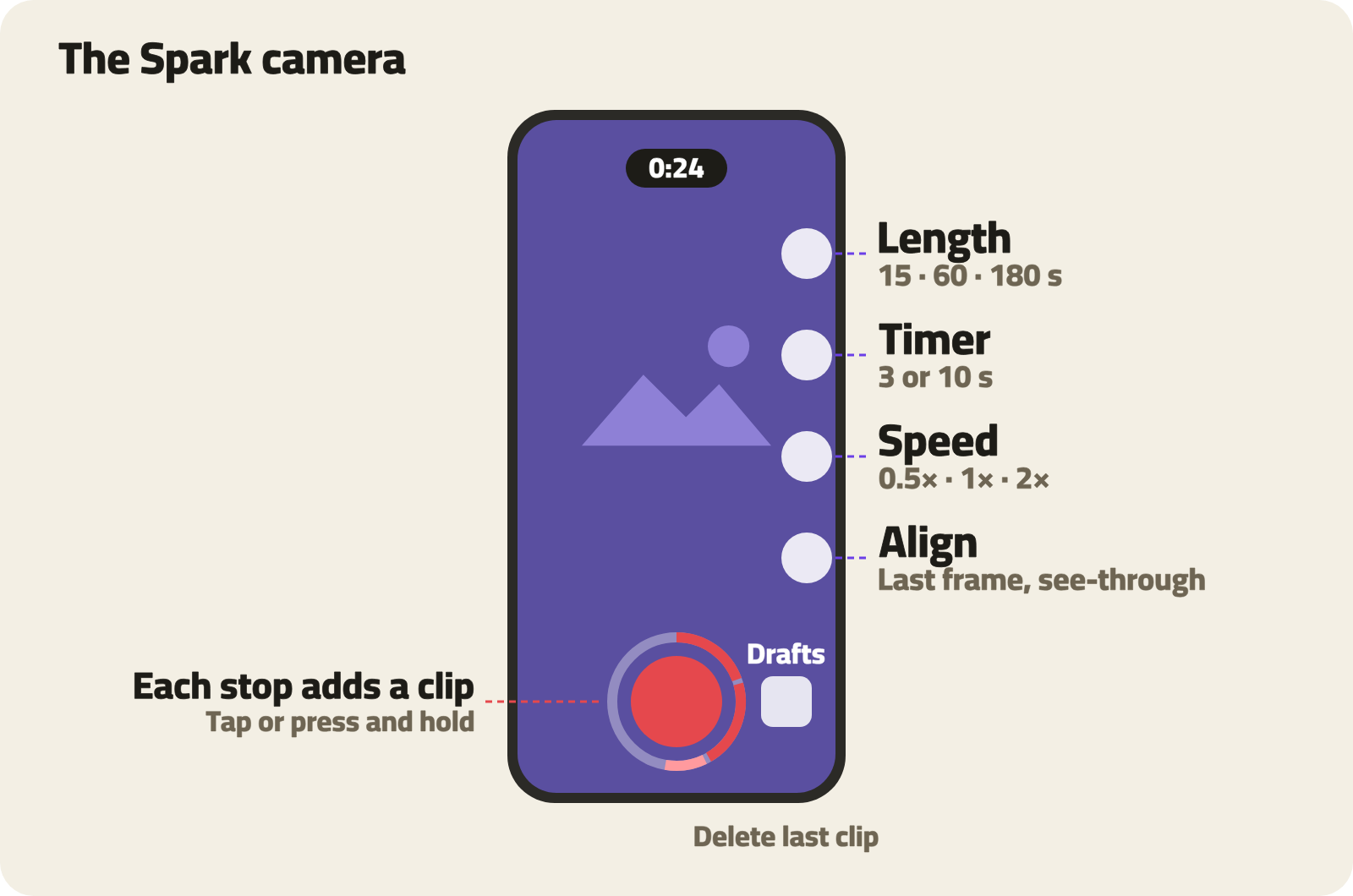
- The ring around the shutter shows each clip in red, and the total time shows at the top.
- A clip shorter than a second isn't kept.
- To remove the last clip, tap "Delete last clip"; to start over, tap ✕.
- When you're done, tap "Next" and the editor opens with your clips in order.
Length
"Length" sets how long the video can be: 15 seconds, 60 seconds or 3 minutes. The camera starts at 60 seconds, and the editor opens by itself when you reach the length.
Timer
"Timer" counts down 3 or 10 seconds before recording starts, so you can film yourself without holding the phone. With "Stop after" you can also have it stop after 5, 10 or 15 seconds.
Speed
"Speed" sets how fast what you record plays back: 0.5×, 1× or 2×. You record in normal time and the video plays slower or faster. At 2× you can record for twice as long before reaching the length.
Align
After your first clip, "Align" appears: it lays the last frame of the previous clip, see-through, over the camera, so you can stand in exactly the same spot and make a clean cut between clips.
Zoom and flash
- To zoom, pinch the screen, or slide your finger up while holding the shutter, up to 10×.
- With the front camera, the flash lights the screen white so you show up clearly in low light.
From your gallery to one reel
You don't have to film everything again. From Spark's gallery, pick up to 20 photos and videos and they become one reel, in the order you picked them.
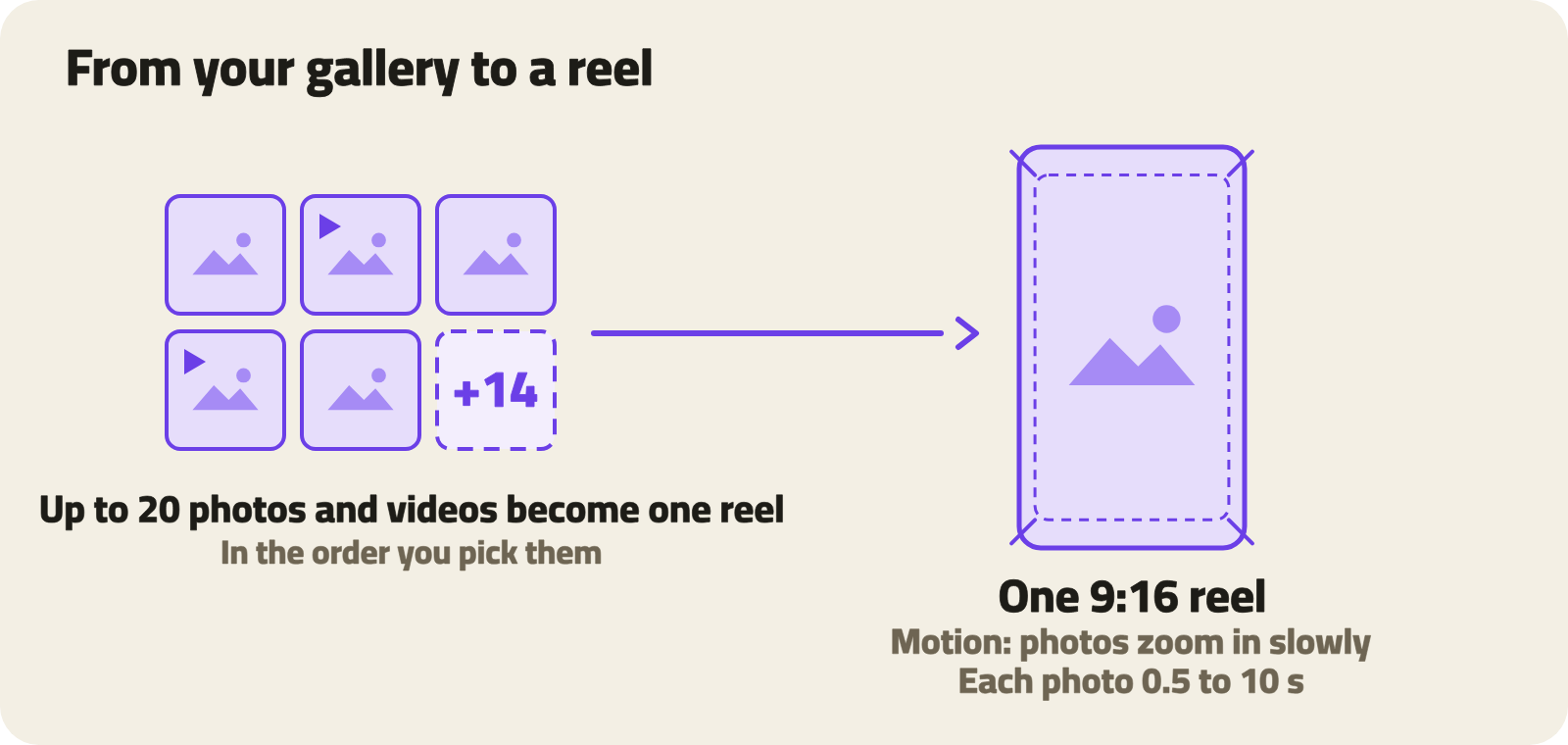
- "Motion": photos zoom in slowly in the reel. Tap it to stop that for every photo, or select one photo first to stop it for that photo only.
- "Same length": gives every photo the same length, from half a second to 10 seconds.
- You can do the same from a regular post: pick two photos or more and "Make a reel" appears.
The video editor
The editor opens after you record or pick. The simple view shows your clips in order; press and hold one to move it. For precise editing, tap "Edit video" to open the timeline.
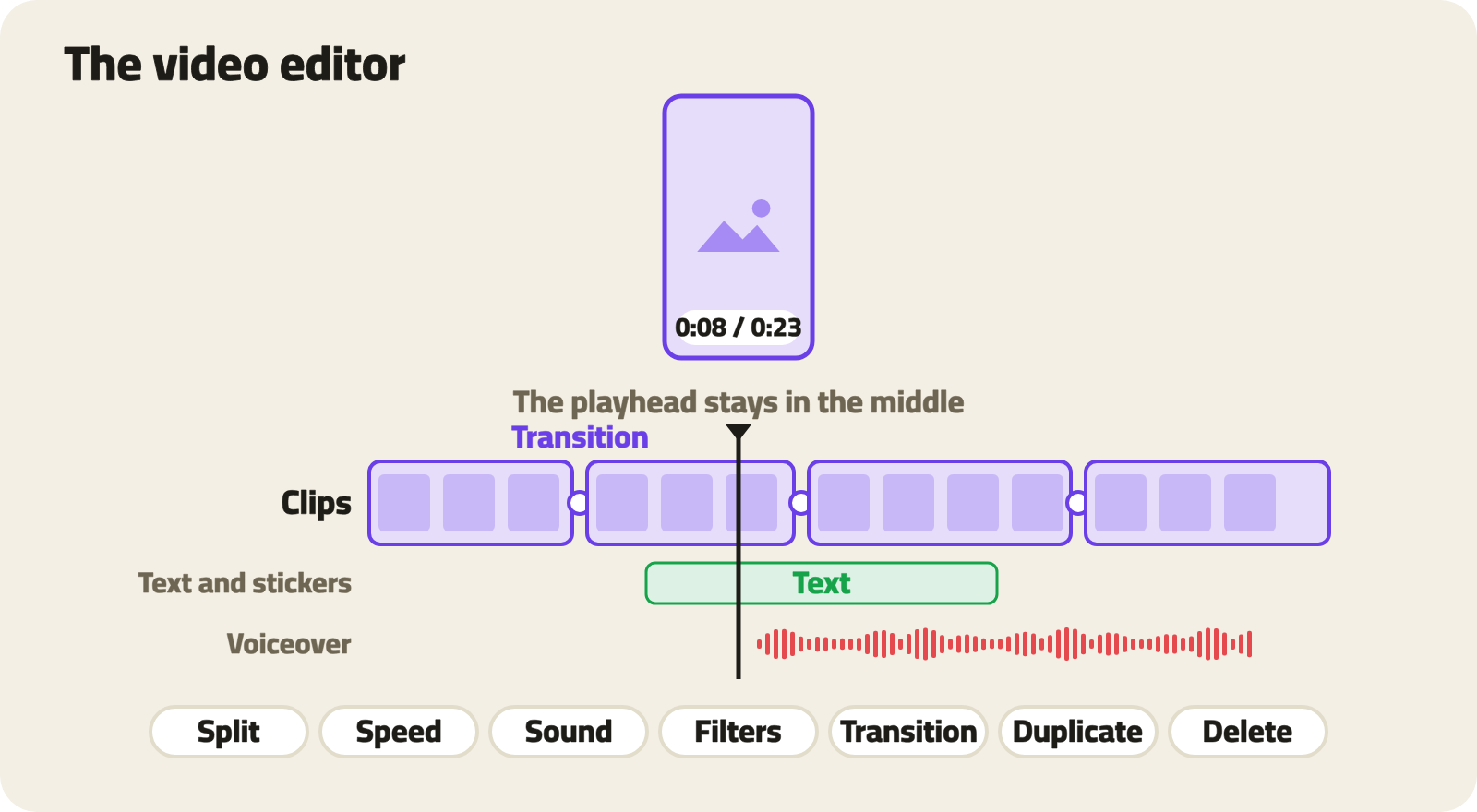
- The playhead stays in the middle: scroll the timeline under it, and pinch to zoom in.
- With nothing selected, the tools are for the whole video: Text, Sticker, Filters, Sound, Ratio, Cover.
- Select a clip and its tools appear:
- Split: cuts the clip at the playhead.
- Speed: from 0.3× to 3×.
- Sound: the clip's volume, from 0 to 200%.
- Duration: for photos.
- Filters.
- Transition: Fade, Dissolve, Slide or Zoom. All but Fade overlap the two clips, so the video gets a little shorter.
- Duplicate.
- Delete.
- To trim the start or end of a clip, drag its edges in the timeline.
- Undo and redo are at the top, so feel free to experiment.
Text
Tap "Text" and type right on the video. Choose the font (Classic, Modern, Light, Simple, Soft, Code), a color from 16, the background, the alignment, an effect (Shadow, Neon or Outline), and the "Animation" it appears with: Fade, Slide, Pop, Typewriter or Word by word.
Set when the text appears and disappears by dragging its edges in the text row.
Ratio
9:16 is best for Spark. If your video has another shape, "Ratio" offers 9:16, 4:5, 1:1 and 16:9, and either "Fit" (the whole video over a blurred copy) or "Fill" (fills the frame and crops the rest).
Sound
Voiceover
Under "Sound", choose "Voiceover", then tap the red button to record your voice from the playhead. While you record, the video plays silently so it isn't picked up.
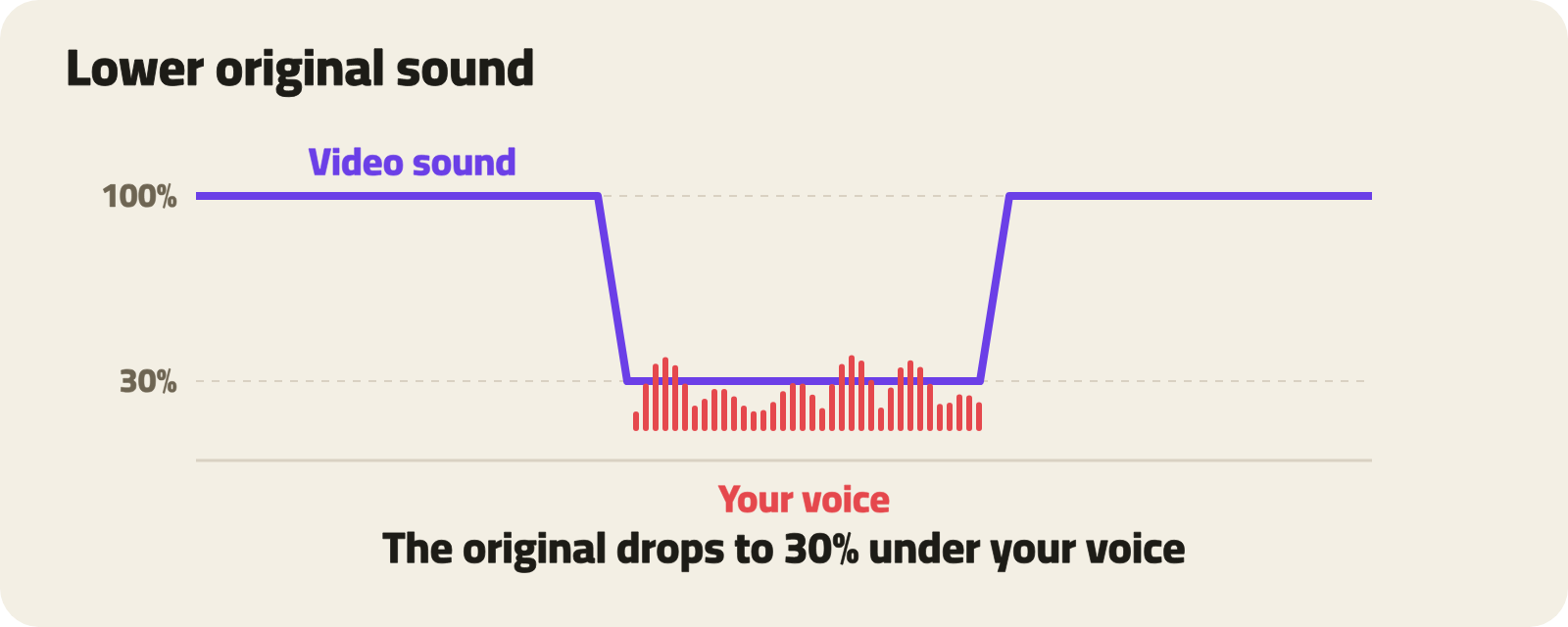
- "Lower original sound" is on from the start: it brings the video's sound down to 30% only while you're speaking, then back up.
- Tap a recording in the timeline to choose "Record again" or "Delete".
Use this sound
Under every video in Spark you'll see its sound, like "Original audio · @noura". Tap it to open the sound's page: whose it is, how many videos use it, and the videos themselves.
- Tap "Use this sound", pick up to 20 photos and videos, and the editor opens with the sound under them.
- Your video shows the original creator's name under it, so the credit stays theirs.
- If you'd rather nobody used your video's sound, choose "Stop others using this sound" from the video's menu.
- You can't upload audio files from outside the app, to protect music rights.
Cover and posting
Under "Cover", pick the frame that sums up your video: it's the first thing people see. Then tap "Next": the app puts the video together on your phone at 1080 × 1920, and you write a caption and post.
- Videos can be up to 3 minutes long.
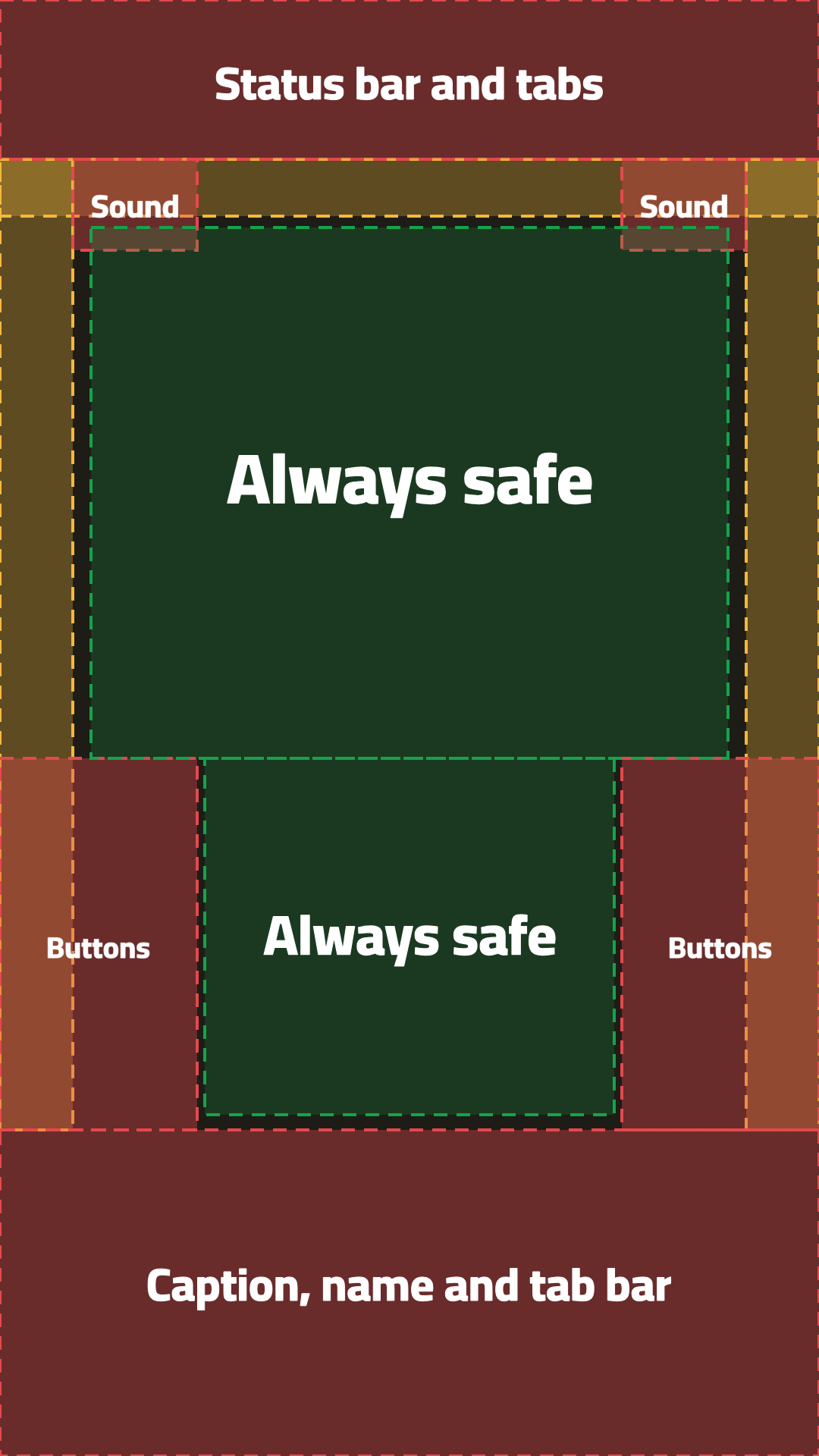
- Before you film, check the safe zones in the image and video sizes guide, so the buttons don't cover your title or your face.
Drafts
Not finished yet? Tap "Save draft" in the editor, and find it later under "Drafts", next to the shutter in Spark.
- If you close the editor with changes, it asks whether to save them as a draft.
- If you leave the app while editing, your changes are saved on their own.
- The latest 20 drafts are kept; older ones are removed.
Quick tips
- Open with your strongest shot: the first seconds decide whether people keep watching.
- Film vertically: 9:16 fills the screen with no cropping.
- Keep titles short and large, in the safe zone.
- Pick a clear cover instead of the automatic frame.
- Use a voiceover to explain your work in your own voice.
Try Spark today, and share the first video you make.